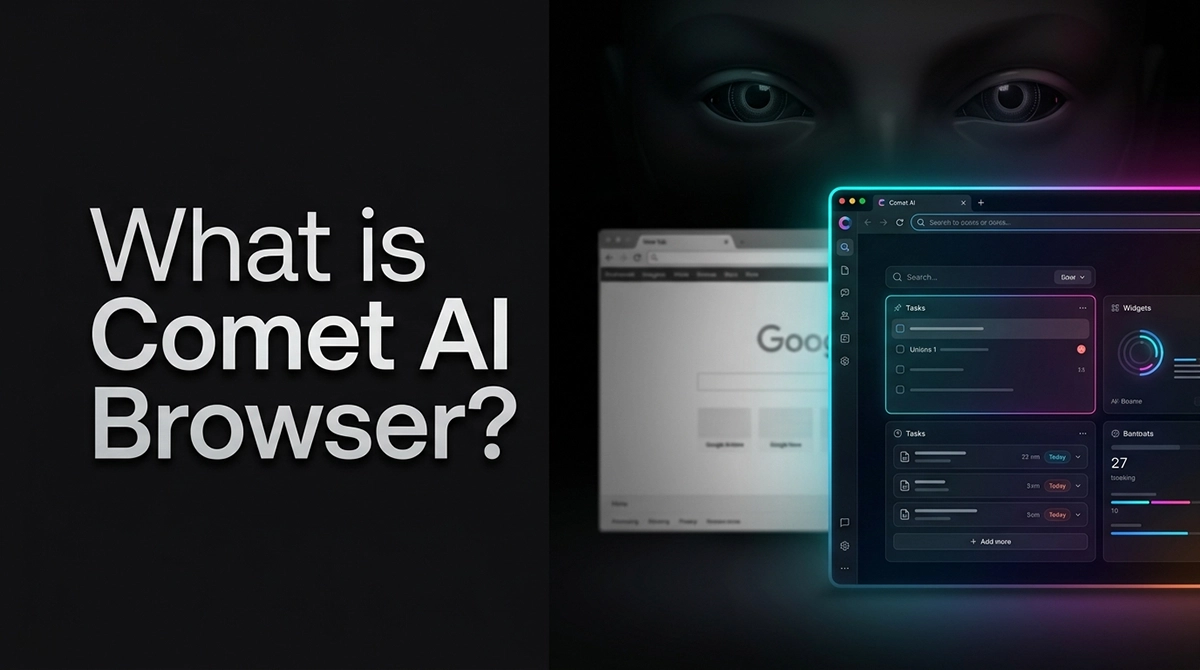
My browser used to be a graveyard of eighty open tabs, each one a forgotten query from a late-night debugging session. Discovering a real AI browser assistant finally cleared the chaos. This isn’t just about flashy features; using a specialized browser with ai completely overhauled my research workflow. Standard ai browsing often feels hollow, but this tool actually understands context. Shifting my primary workflow to a smarter ai browser cut my research time in half. It’s the kind of upgrade that makes you wonder why we settled for manual searching for so long.
Table of Contents
Why I Started Looking for an AI Browser Assistant
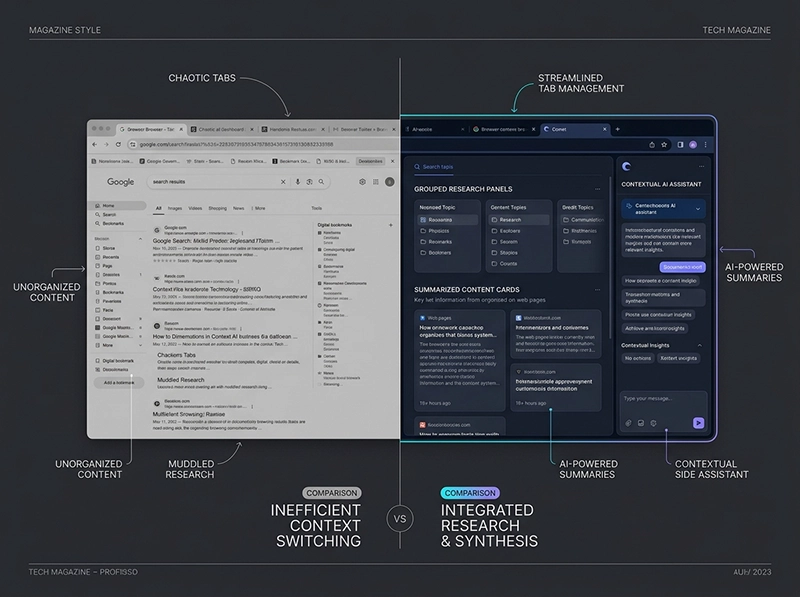
Before I changed anything, my browser had become the weakest part of my daily system. Research, documentation checks, quick comparisons, and scattered notes were happening in too many places at once. I was already using strong ai productivity tools, but the workflow still felt stitched together with stress and habit instead of design. That was the moment I started looking for an AI browser assistant, not for novelty, but to reduce friction, protect focus, and stop losing useful context between tabs, prompts, and unfinished technical threads.
The Cognitive Toll of Chronic Tab Overload
At one point, opening tabs stopped feeling productive and started feeling defensive. I was keeping pages open because I did not trust myself to find them again when a bug, architecture decision, or content idea came back a few hours later. That habit created invisible mental drag. It also reminded me why I dislike Low Quality AI Content so much: both tab overload and weak AI writing create noise, not clarity. The more fragmented the input becomes, the harder it is to think deeply, write sharply, and make clean technical decisions.
My Messy Setup: Switching Between ChatGPT, Google, and Markdown Notes
My old setup looked efficient from the outside, but it was messy in practice. I would search with Google, ask follow-up questions in ChatGPT, paste useful pieces into Markdown notes, then reopen the same sources because the thread was never truly preserved. That loop consumed attention far more than time. Even when the tools were individually strong, the ai workflow between them felt fragile. I was not dealing with one research session; I was juggling fragments of five different sessions that kept colliding throughout the day.
The Breaking Point in My Daily Coding and Research Workflow
The real breaking point came when technical research and content production started competing for the same mental bandwidth. I would move from Laravel architecture notes to AI research, then to content outlining, without ever feeling fully inside one stream of thought. Around that time, I also started noticing how often people relied on an AI Writing Assistant with chrome as a patch for weak process design. That made me realize I did not just need a smarter writing layer or even the best ai browser. I needed fewer broken transitions.
The Comet AI Browser Experiment: Moving Beyond Chrome
I did not switch out of excitement. I switched because my old setup was leaking too much attention. Chrome was still useful, but it had become a container for manual recovery work: reopening links, rebuilding context, and retracing earlier searches. What interested me about comet ai browser was not the branding but the promise of continuity. I wanted to see whether a browser could do more than display pages. I wanted it to help carry the research state itself, especially during long sessions involving technical reading, note synthesis, and idea validation.
Setting Up My First Dedicated AI Browser Assistant
The first thing I noticed during setup was not speed but reduction in friction. I built an early test routine around documentation reading, AI tool comparisons, and article planning, because those were the sessions where my older browser habits usually broke down. Using a dedicated AI browser assistant in that environment felt less like adding another tool and more like removing several hidden ones. The browser started behaving like a working layer for research instead of a passive window. That difference matters when your day depends on preserving context, not just opening links faster.
Setting Up My First Dedicated AI Browser Assistant
The first thing I noticed during setup was not speed but reduction in friction. I built an early test routine around documentation reading, AI tool comparisons, and article planning, because those were the sessions where my older browser habits usually broke down. Using a dedicated AI browser assistant in that environment felt less like adding another tool and more like removing several hidden ones. The browser started behaving like a working layer for research instead of a passive window. That difference matters when your day depends on preserving context, not just opening links faster.
The Unexpected Difference Between Searching and Browsing
Before this experiment, I treated searching and browsing as nearly the same activity. In practice, they are not. Search is about retrieval, while browsing is where interpretation, comparison, and decision-making actually happen. That distinction became obvious once I stopped measuring value by how fast results appeared. In my daily ai web research, the real bottleneck was not access to information; it was preserving meaning across sources. A good ai search browser does more than fetch answers. It helps maintain continuity while you investigate, verify, and turn raw findings into usable judgment.
Why Context Awareness Beats Traditional Keyword Queries
Traditional queries are fine when you already know what you want. My problem was different: I was often exploring technical uncertainty, comparing tools, or shaping an argument while still learning. In those moments, a context-aware ai research assistant is more useful than another list of links. It tracks the direction of thought instead of resetting the task with every new query. That changed the quality of my ai browsing sessions. I spent less energy restating intent, and more energy evaluating trade-offs, spotting weak claims, and building conclusions I could actually trust.
What Comet Did Better Than My Old Multi-Tab Workflow
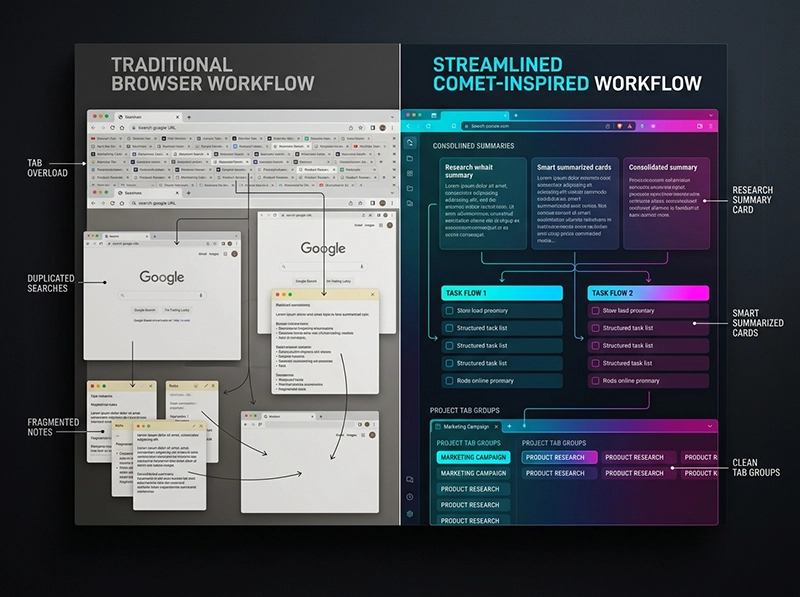
My old multi-tab workflow looked “busy” but wasn’t truly productive: I was constantly reopening docs, re-reading the same paragraphs, and losing small decisions in the cracks. With Comet, the value showed up in the boring moments—when I needed the browser to carry context instead of dumping it on my memory. As a comet ai personal assistant, it felt less like a chat box and more like a workflow layer. The result wasn’t magic; it was fewer resets, cleaner notes, and faster verification.
Automated Page Summarization Without Sidebar Clutter
The first win was page summarization that didn’t hijack my screen. I used it while reviewing API docs and pricing pages, where my usual habit is to skim, forget, and come back later. Instead of dumping a noisy sidebar, the summarization felt like a tight briefing I could trust for navigation—not final truth. When I was deep in a Laravel debugging session, those summaries helped me decide which tab deserved attention and which one was a dead end. That alone reduced tab hoarding more than any extension.
Automated Page Summarization Without Sidebar Clutter
The first win was page summarization that didn’t hijack my screen. I used it while reviewing API docs and pricing pages, where my usual habit is to skim, forget, and come back later. Instead of dumping a noisy sidebar, the summarization felt like a tight briefing I could trust for navigation—not final truth. When I was deep in a Laravel debugging session, those summaries helped me decide which tab deserved attention and which one was a dead end. That alone reduced tab hoarding more than any extension.
Intelligent Information Synthesis Across Multiple Domains
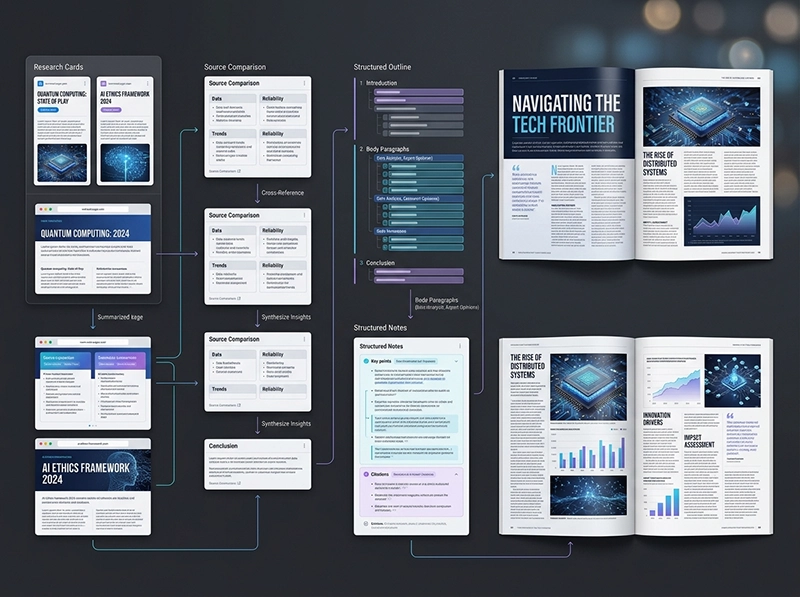
Where it got interesting was synthesis across unrelated sources. I often have one thread about infrastructure, another about AI tooling, and a third about how to explain it in an article without sounding like marketing. Comet handled that cross-domain mess better than my manual copy-paste routine. As a comet ai browser assistant, it could merge points, surface contradictions, and suggest what I should verify next. I still kept my own notes in Markdown, but now the browser helped me assemble a coherent story instead of leaving me with scattered fragments.
True Research Continuity and Less Fragmented Sessions
Continuity was the real upgrade. I didn’t want “faster search”; I wanted fewer moments where I ask, “Why did I open this?” Comet made it easier to resume a research trail after meetings, code reviews, or a production incident. That matters when your day is split into short attention slices. Even when I tested the ai browser free angle on a secondary machine, the bigger benefit was the same: reduced fragmentation. I could switch tasks without rebuilding the entire mental state from scratch, which is how deep work survives in real CTO life.
The Reality Check: Where Agentic Browsing Still Feels Weird (Hallucinations & Privacy)
Now the uncomfortable part: agentic browsing can still feel weird. I caught it confidently summarizing a page while missing a small but critical footnote—exactly the kind of detail that breaks a deployment plan. So my rule became simple: summaries guide, sources decide. Privacy is the other trade-off. If the browser is “helping,” it’s also observing. Before recommending it to my team, I mapped which tasks could stay local and which needed external processing. If you’re considering ai browser download for pc, treat it like any new dev tool: test it in a sandbox first.
Is Comet AI Browser Worth Trying in 2026?
In 2026, the question isn’t whether AI belongs in the browser—it already does. The question is whether it reduces real operational pain: context loss, tab overload, and repeated verification. For me, Comet was worth trying because it changed how I move from “finding info” to “making a decision.” This is where the AI Browser Assistant idea becomes practical, not hype. And before you trust any claims (including mine), compare behaviors using a neutral benchmark—something like an AI tool evaluation framework—so you don’t confuse polish with reliability.
Task Comparison Table (Comet vs My Old Workflow)
| Task | Old Multi-Tab Workflow | Comet Workflow | What Changed for Me |
|---|---|---|---|
| Reading docs fast | Skim + reopen later | Summaries + quick jumps | Fewer re-reads |
| Cross-source comparison | Manual copy/paste | Assisted synthesis | Less context loss |
| Writing a technical outline | Notes fragmented | Thread stays coherent | Faster structure |
| Verifying claims | Ad-hoc checks | Prompts to verify | More disciplined |
| Switching tasks | Mental reset | Resume trail | Less fragmentation |
Who Benefits Most (and Who Should Avoid It)
If you live in docs, tickets, and research, you’ll feel the benefit fast—especially if you’re juggling architecture decisions with content production. People who rely on clean, repeatable workflows (CTOs, tech leads, backend engineers) will get more value than casual browsing users. On the other hand, if you hate any ambiguity, or your work is highly sensitive, you may prefer a simpler ai powered browser setup with stricter controls. I’d also avoid rolling it out team-wide until you’ve tested failure modes: wrong summaries, missing citations, and privacy defaults.
The Final Verdict: I Don’t Need a Better Browser, I Need a Better Workflow
My verdict is boring—in a good way. Comet didn’t make me “more creative”; it made me less wasteful. The hours I saved came from fewer re-checks, fewer tab rescues, and less rewriting the same intent into different tools. That’s why I don’t frame it as the best ai browser in some abstract ranking. I frame it as a workflow fix for a specific pain: continuous research under interruption. If your day looks like mine—code, incidents, decisions, writing—then it’s worth a controlled trial.
Conclusion
I’m not leaving Chrome because it’s bad; I’m leaving the old habit of treating the browser as a dumb container. Comet proved useful when reality got messy: urgent bugs, half-finished research, and content deadlines colliding in the same afternoon. The best part wasn’t answers—it was continuity and less mental thrash. I still verify sources, I still keep my Markdown notes, and I still distrust anything that smells like automation theater. But if you want fewer tabs and more decisions per hour, this approach is hard to ignore.